

A speed up BNB transaction strategy is something every Web3 trader must master to keep their digital operations running smoothly. During moments of extreme market volatility or high-volume NFT mints on the BNB Smart Chain (BSC), transaction queues can quickly become congested. When this occurs, a transaction with a gas price that is set too low will get stuck in the network’s mempool (the temporary storage pool for pending transactions), potentially blocking any subsequent trades you try to make from that same wallet.
To speed up BNB transaction processes and resolve these frustrating delays, you do not need to sit and wait. By utilizing the advanced gas-customization features built into modern Web3 wallets, you can easily override or cancel stuck transactions in seconds. This comprehensive troubleshooting guide on BNB Guides explains the technical reasons why transactions stall and provides a clear, step-by-step rescue blueprint to get your funds moving again.
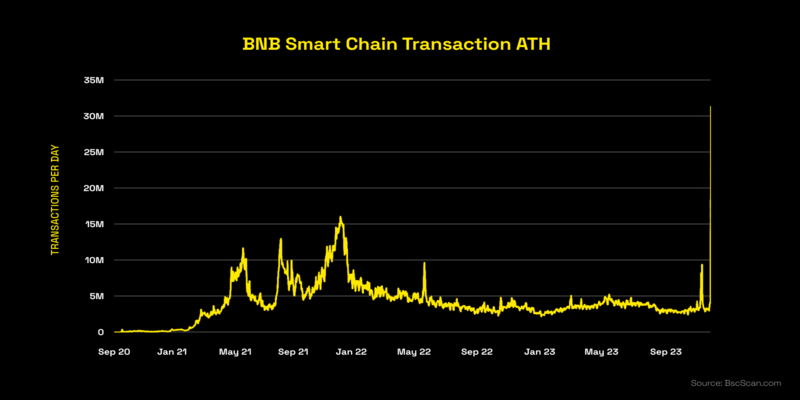
Before jumping into the manual recovery steps, it is helpful to understand why a transaction gets stuck in the first place. The BNB Smart Chain relies on a set of active validators to order and package transactions into blocks. Because block space is limited, validators prioritize transactions that offer higher financial incentives in the form of gas fees.
If you have a pending trade that has been spinning for several minutes, you can resolve the issue by resubmitting the transaction with a higher priority fee or by overriding the stuck nonce.
This sequence walks you through the exact technical process to safely speed up BNB transaction queues using your software wallet:
1. Locate the Stuck Nonce on BscScan: Identify the exact queue position.
Open BscScan, paste your public wallet address into the search bar, and navigate to the pending transaction. Scroll down to find the ‘Nonce’ value—this is the exact sequence number you need to override.
2. Adjust the Gas Price Settings in Your Wallet: Increase the priority fee to attract validators.
Open your software wallet (such as MetaMask or Trust Wallet) and locate the pending transaction. Click on ‘Speed Up’ or ‘Edit Gas’. Increase the Max Fee and Priority Fee by at least 10% to 20% above the current network average.
3. Submit a Custom Nonce Replacement Transaction: Clear the block bottleneck directly.
If your wallet does not have a quick ‘Speed Up’ button, enable ‘Customize Transaction Nonce’ in your wallet’s advanced settings. Create a new transaction (such as sending 0 BNB to yourself) and manually enter the exact stuck nonce number you found in Step 1.
4. Broadcast the Override and Verify Confirmation: Confirm the queue is clear.
Set an aggressive gas price for this replacement transaction and sign it. The network will see two transactions with the same nonce and will process the one with the higher fee first, automatically cancelling the original stuck transaction.
To speed up BNB transaction times effectively, you must understand the key parameters that dictate how fees are calculated on the BNB Smart Chain. Adjusting these values incorrectly can lead to overpaying for transactions or causing further block delays.
The table below outlines the primary gas variables you can modify in your wallet settings to speed up BNB transaction queues during peak traffic:
| Gas Parameter | Technical Definition | Impact on Confirmation Speed | Recommended Setting During Congestion |
| Max Fee (Gwei) | The maximum amount you are willing to pay per unit of gas | High (Determines validator priority) | Set 10-20% higher than the current average Gwei |
| Priority Fee (Gwei) | The direct tip paid to validators to prioritize your trade | Critical (Directly dictates queue position) | Increase by 2 to 5 Gwei to bypass the queue |
| Gas Limit | The maximum units of computational work allowed | Medium (Prevents out-of-gas errors) | Leave at the wallet’s default estimate |
| Nonce | The sequential transaction index for your wallet address | Absolute (Controls processing order) | Match exactly when overriding a stuck trade |
By keeping these parameters optimized, you can make sure your transactions are packaged into blocks instantly without overpaying for network fees.
The amount of fee adjustment required to speed up BNB transaction delays depends heavily on current network traffic. During standard market conditions, the baseline fee is incredibly low, but major events require more aggressive gas strategies.
The table below highlights how to adjust your transaction parameters based on real-time network congestion levels on the BNB Smart Chain:
| Congestion Level | Average Gwei Range | Expected Confirmation Time | Recommended Strategy to Speed Up BNB Transaction |
| Low Network Traffic | 1.0 – 1.5 Gwei | 3 Seconds (Next Block) | Use the wallet’s default standard gas recommendation |
| Moderate Network Traffic | 1.5 – 3.0 Gwei | 3 – 10 Seconds | Opt for the ‘Fast’ setting in your wallet interface |
| High Network Traffic | 3.0 – 5.0 Gwei | 30 Seconds – 5 Minutes | Manually increase the Priority Fee by 1.5 Gwei |
| Extreme Volatility | 5.0+ Gwei | 5+ Minutes (Can stall) | Use custom nonce replacement with aggressive priority fees |
Maintaining a close eye on these network states prevents you from experiencing stalled transactions in the first place, ensuring your trades execute at the exact prices you intend.
While knowing how to speed up BNB transaction failures is an essential recovery skill, the ultimate goal is to avoid getting stuck in the mempool altogether. Implementing clean transaction habits protects your capital and keeps your trading activities efficient.
Mastering the technical steps to speed up BNB transaction bottlenecks is an absolute necessity for anyone navigating the fast-paced Web3 ecosystem. With the right configuration, a stuck trade can be resolved in less than a minute, saving you from missed trading opportunities and unnecessary stress.

 Bitcoin (BTC) $ 84,843.00 5.45%
 Ethereum (ETH) $ 2,724.45 5.71%
 Tether (USDT) $ 0.999661 0.03%
 BNB (BNB) $ 790.78 5.14%
 XRP (XRP) $ 1.49 7.82%
 USDC (USDC) $ 0.999722 0.02%
 Solana (SOL) $ 116.74 7.55%
 TRON (TRX) $ 0.344352 0.61%
 Zcash (ZEC) $ 1,559.04 7.88%
 Figure Heloc (FIGR_HELOC) $ 1.00 0%